> ## Documentation Index
> Fetch the complete documentation index at: https://help.formsdeck.com/llms.txt
> Use this file to discover all available pages before exploring further.
# QR Code for WhatsApp form
> How to get QR code for your form
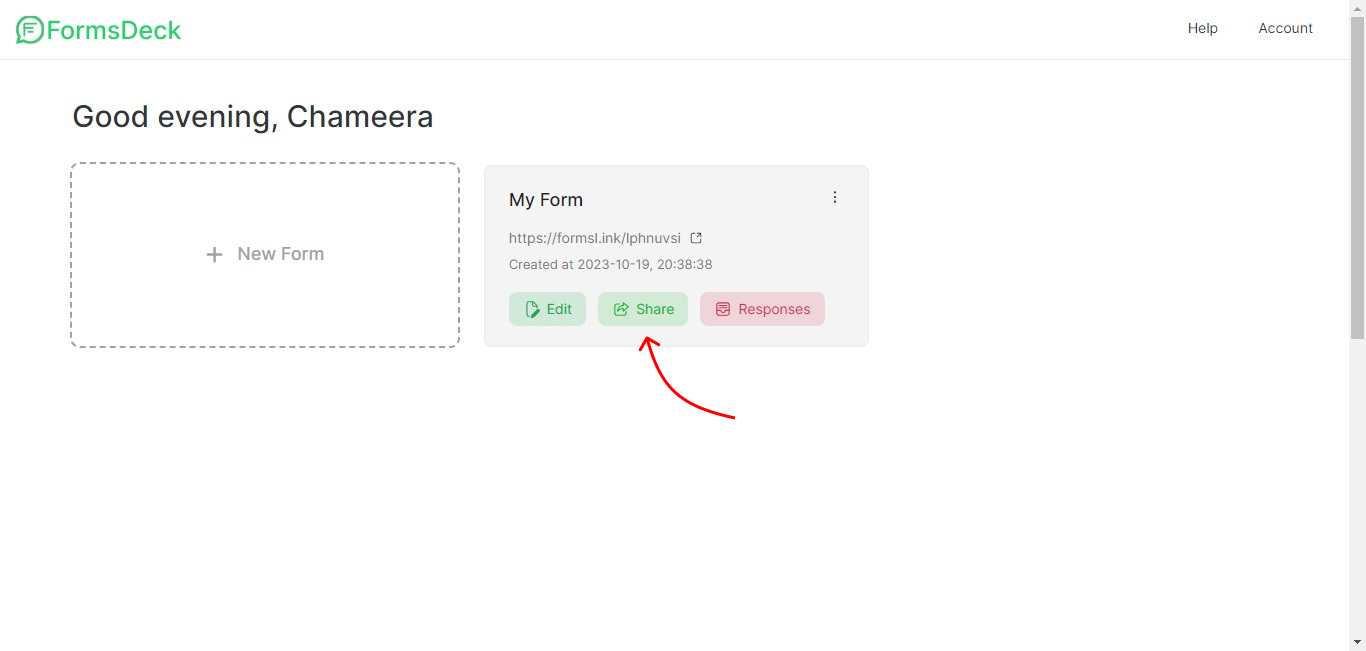
## Share Section
You can click on the Share button inside the WhatsApp form to go to the Share section
 ## Download QR code
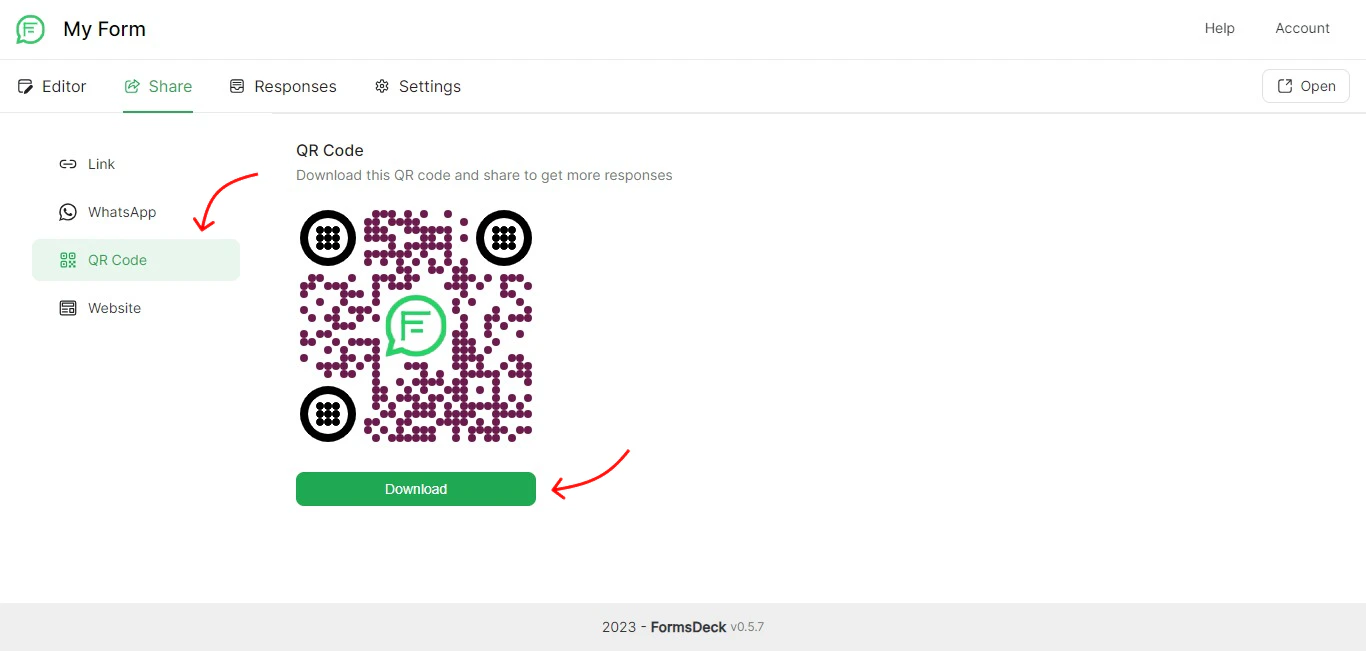
Under Share > QR code, you can download the unique QR code of your WhatsApp form.
## Download QR code
Under Share > QR code, you can download the unique QR code of your WhatsApp form.
 Place the QR code on your storefront, on your business cards, and on your flyers or brochures to get more conversations inside WhatsApp.
Also, If you have a restaurant, you can place it as the restaurant menu QR or feedback QR.
Place the QR code on your storefront, on your business cards, and on your flyers or brochures to get more conversations inside WhatsApp.
Also, If you have a restaurant, you can place it as the restaurant menu QR or feedback QR.